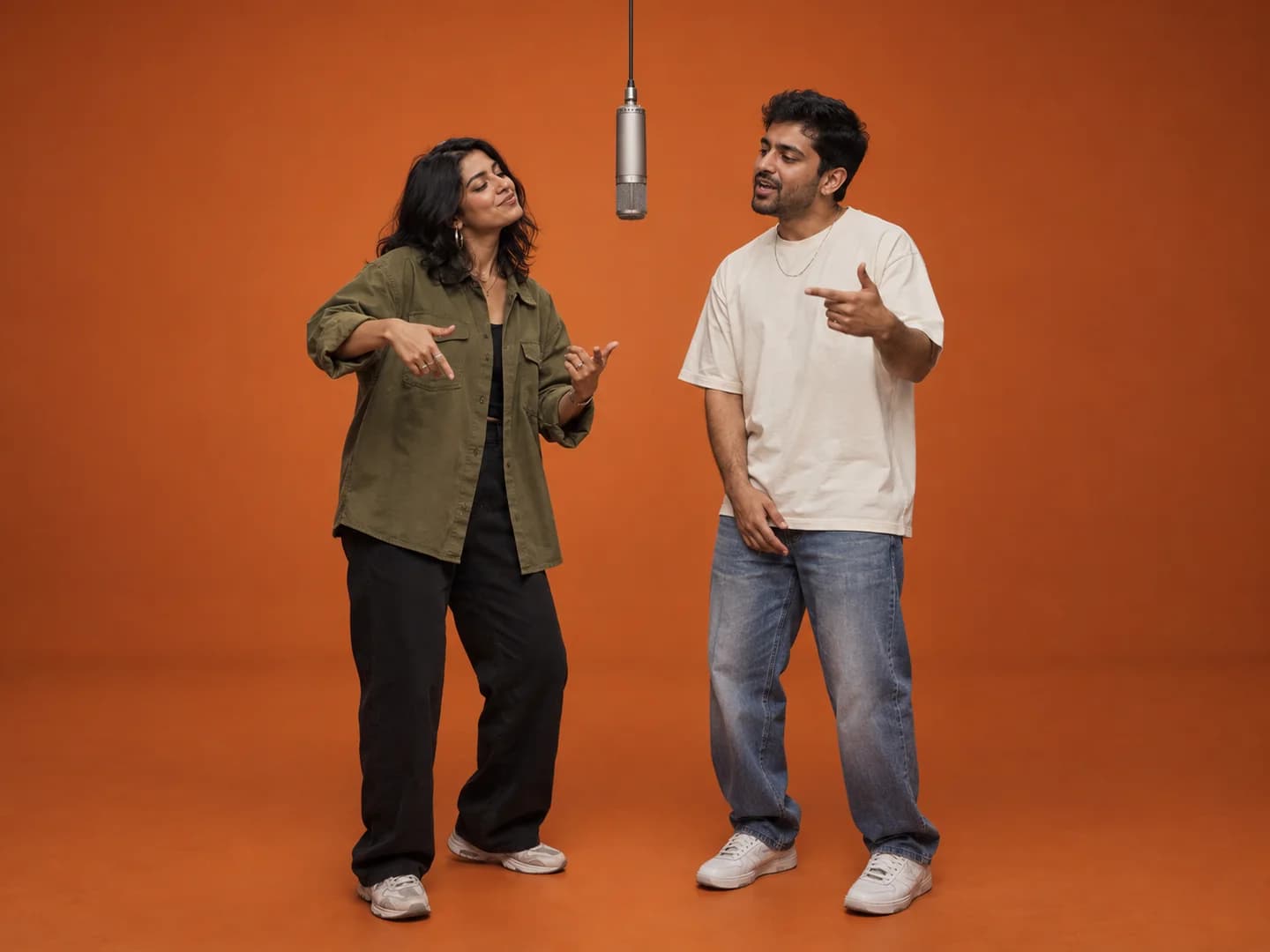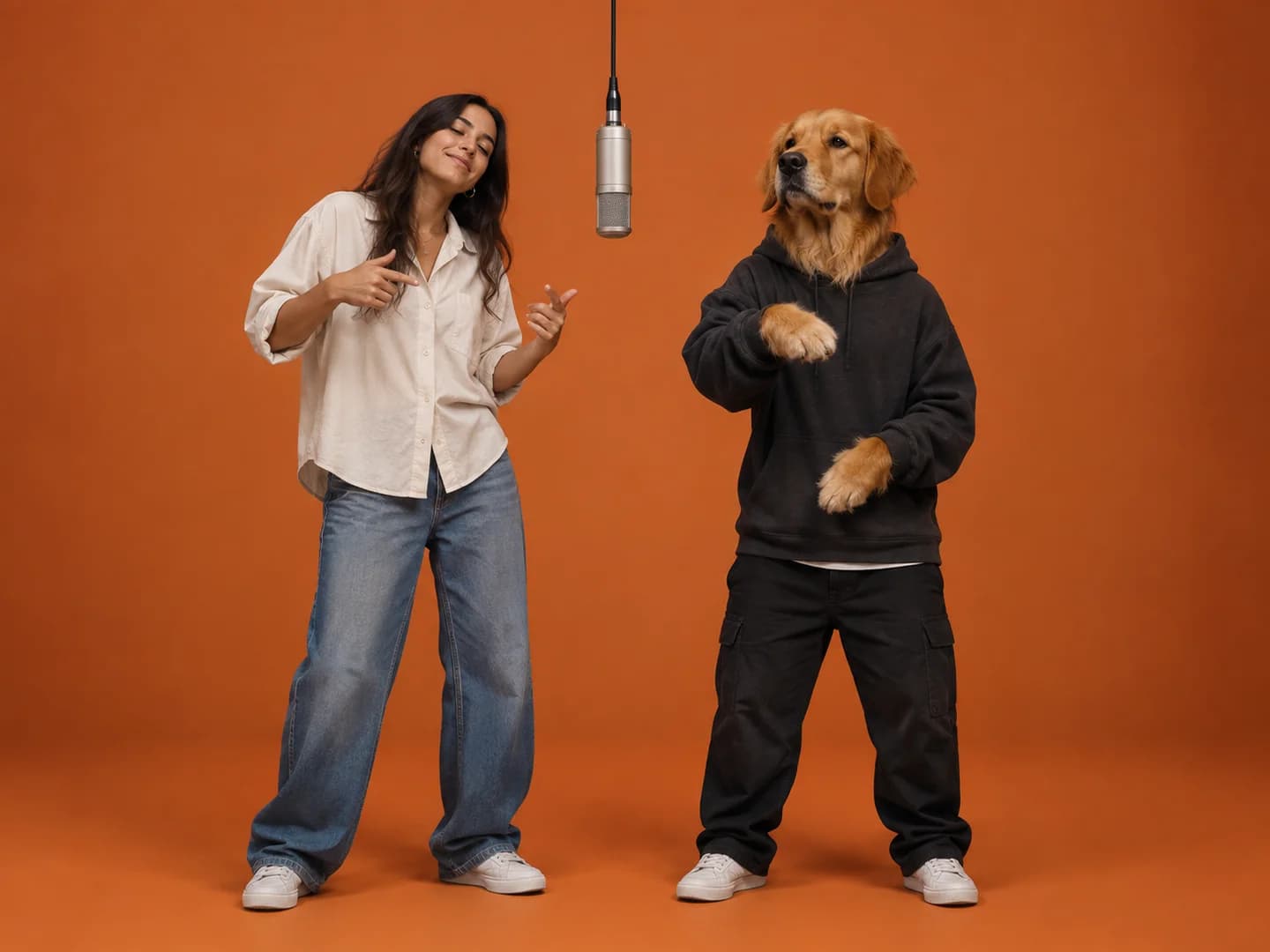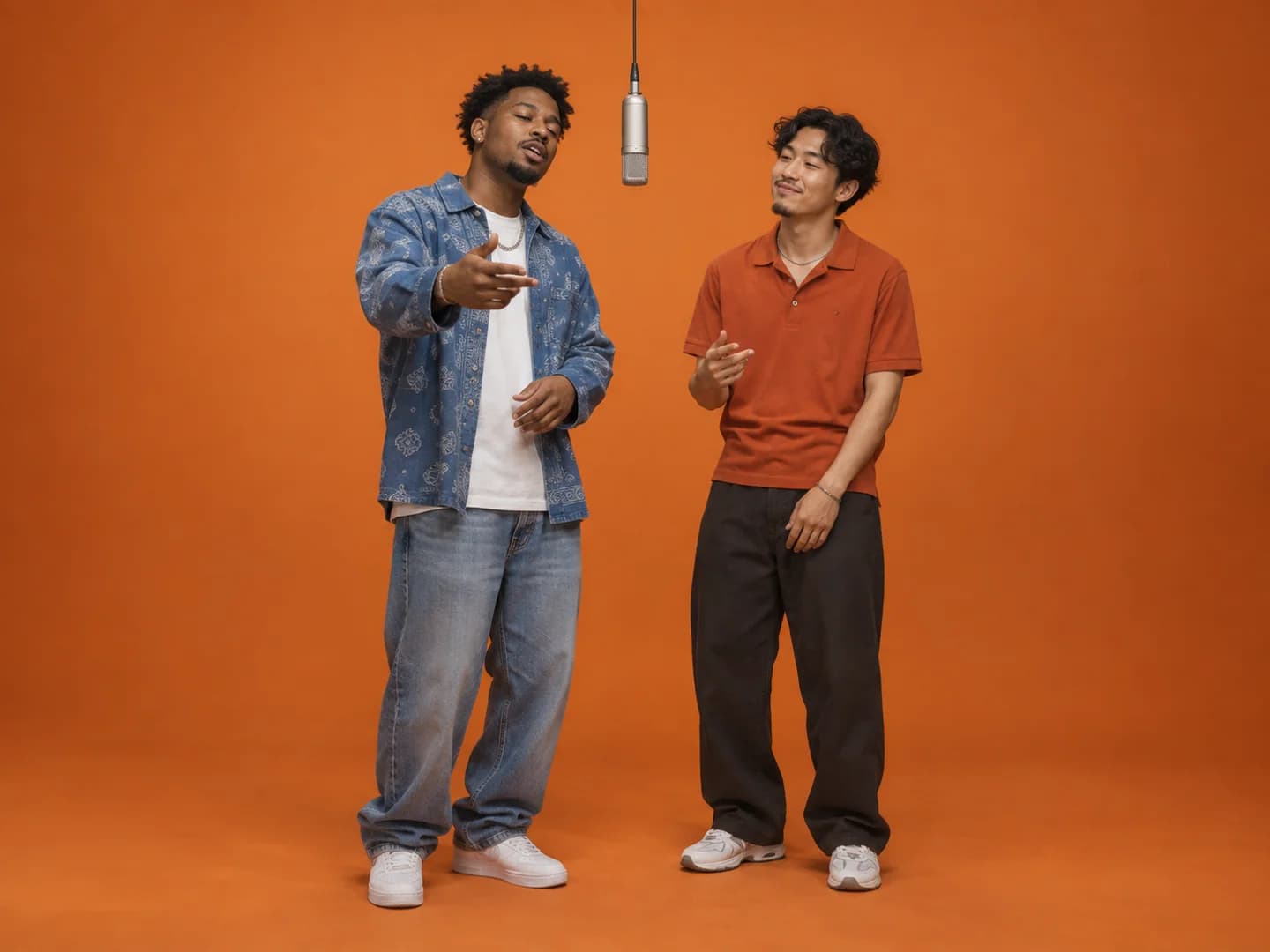
Quick answer
Upload one clear photo for each performer and pick portrait or landscape without signing in. Click Generate My Video, then sign in with Google and add credits if prompted. Your photos and format are kept when you return to the generator. Make Hotel Lobby AI creates a 5–15 second clip with original generated audio to preview and download.
1. Pick two photos that identify the performers
Start with two separate images, rather than a single photo of both people. Photo 1 supplies the intended left performer; Photo 2 supplies the right performer. A friend, partner or pet can fill either role. Check that everyone whose photo you use has agreed to the idea.
A portrait gives the model visible facial detail. A full-body image supplies more information about clothing and proportions. Choose the framing that contains what you care about: the model has to invent anything outside the photograph. Avoid tiny faces, sunglasses that hide the eyes and screenshots with captions covering the subject.
2. Upload the photos and choose a format
Add the two photos in the order you want; no sign-in is needed to choose them. Use a still JPG, PNG or WebP file, up to 8 MB per photo. Check the previews before generating, especially if your two source files have similar names.
Choose portrait 9:16 when you want a vertical clip, or landscape 16:9 for a wider composition. Both options create the same video at your selected duration and resolution with audio. The booth illustration helps you check the layout; it is not a preview of the final AI result.
You do not need to upload a motion clip. The generator supplies the scene and two-performer setup. Choose a stage, model, duration and resolution; an optional theme can guide the new performance.
3. Click Generate, then sign in and check your credits
Click Generate My Video after choosing both photos and your format. If you are not signed in, use Continue with Google to create or open your account. Your selected photos and format are kept in this browser tab for your return. Keep using that same Google account so your credit balance and video history stay together.
Each video uses the displayed number of credits. If your balance is too low when you click Generate, choose a credit pack. The Single pack costs $9.99 for 36 credits. The number of videos depends on your selected settings. Packs are one-time purchases, with no subscription or automatic renewal. Purchased credits do not expire. Confirm the current pack and amount on the pricing page before Stripe Checkout.
After checkout, the account page waits for payment confirmation. Credits are added after the verified payment callback arrives, rather than just because you reached the success page. Once your credits are ready, return to the booth to continue with your selected photos. If confirmation is delayed, refresh your account before trying another purchase.
4. Generate once and follow the existing task
Press Generate My Video when both photos and your balance are ready. The app reserves the credits and saves the task to your account. A busy queue can increase the wait, so treat any expected completion time as an estimate.
If a progress request fails, retry the status check for that task. Starting a new generation is a separate request and can use another set of credits. You can close the progress window and return to My videos to check the saved task.
A generation that fails returns its reserved credits. A completed video still uses credits even if you decide you would prefer a different result. Before a second attempt, identify the problem and change one input, such as replacing a blurry portrait.
Ready for your own duet?
Choose your two performers, check your credit balance and bring them into the booth.
Create a Hotel Lobby video ↗See credit packs