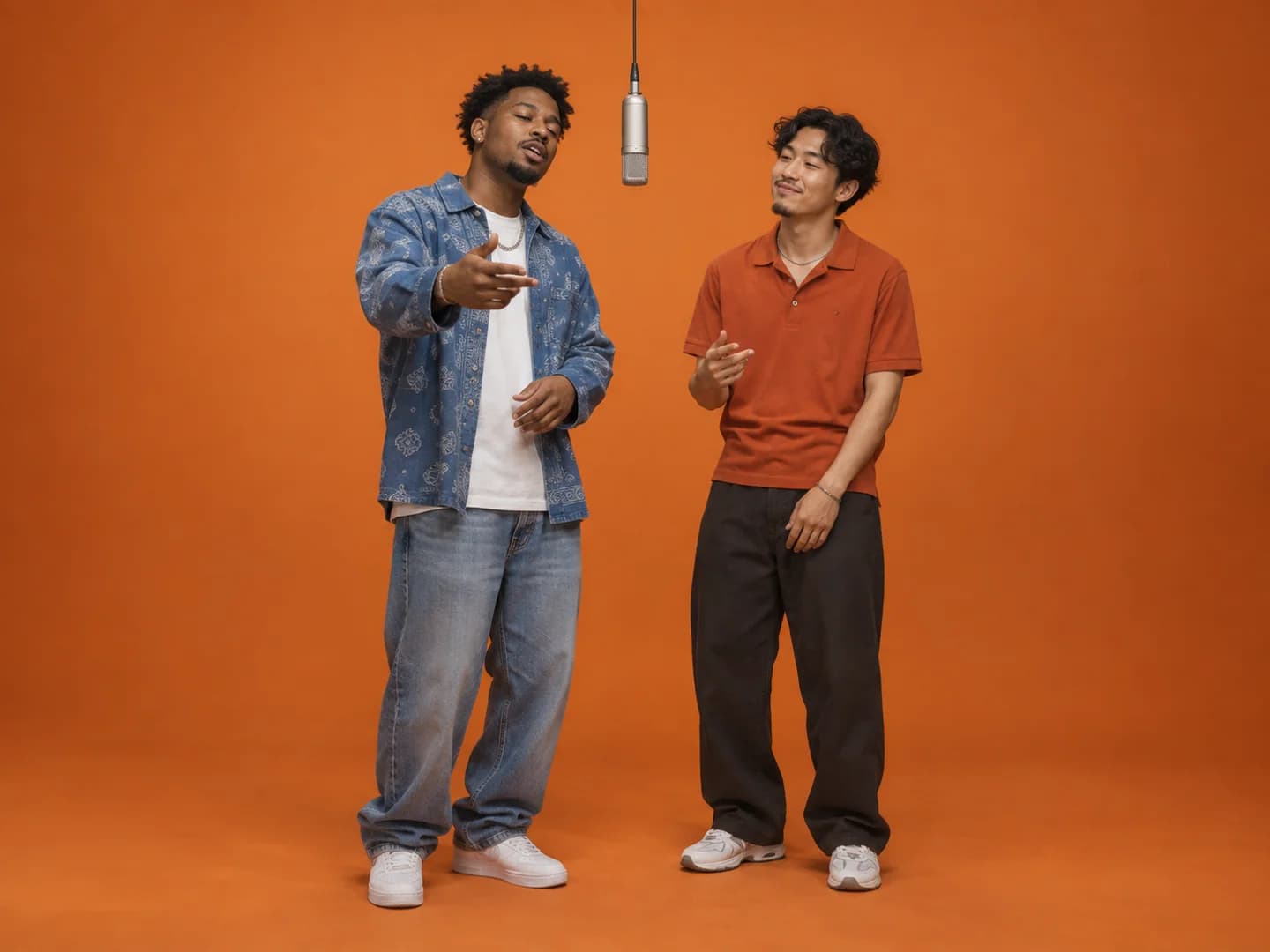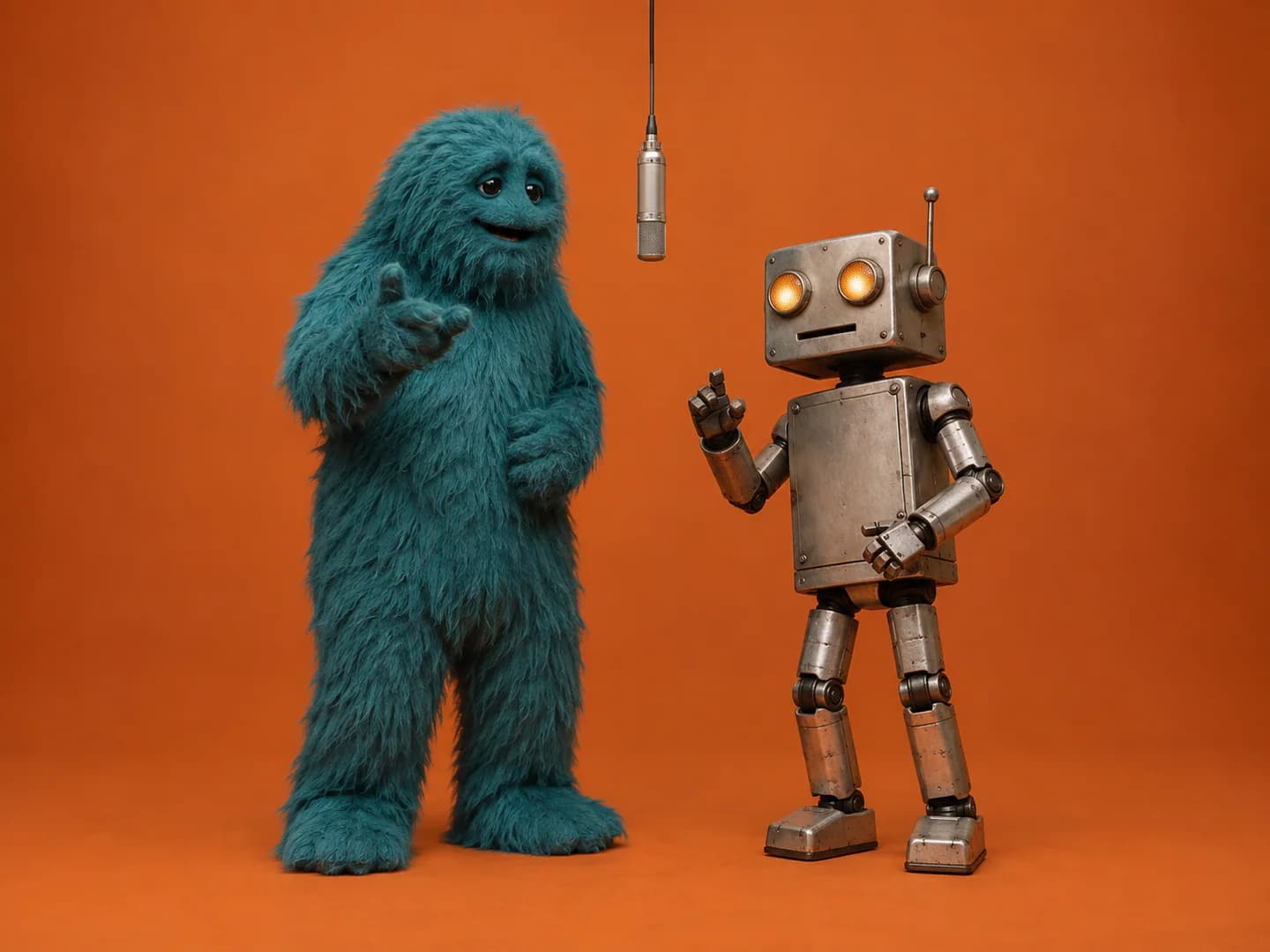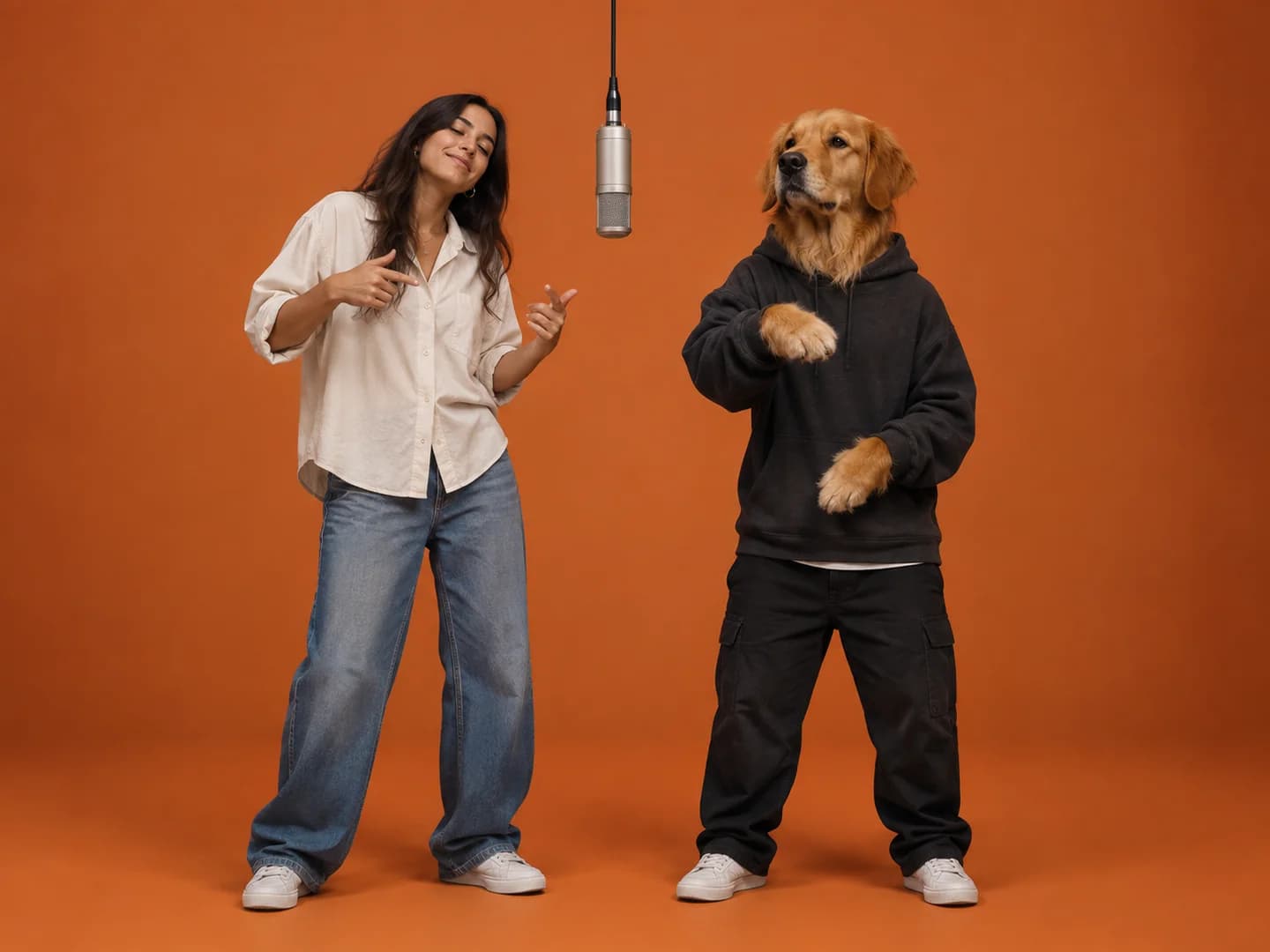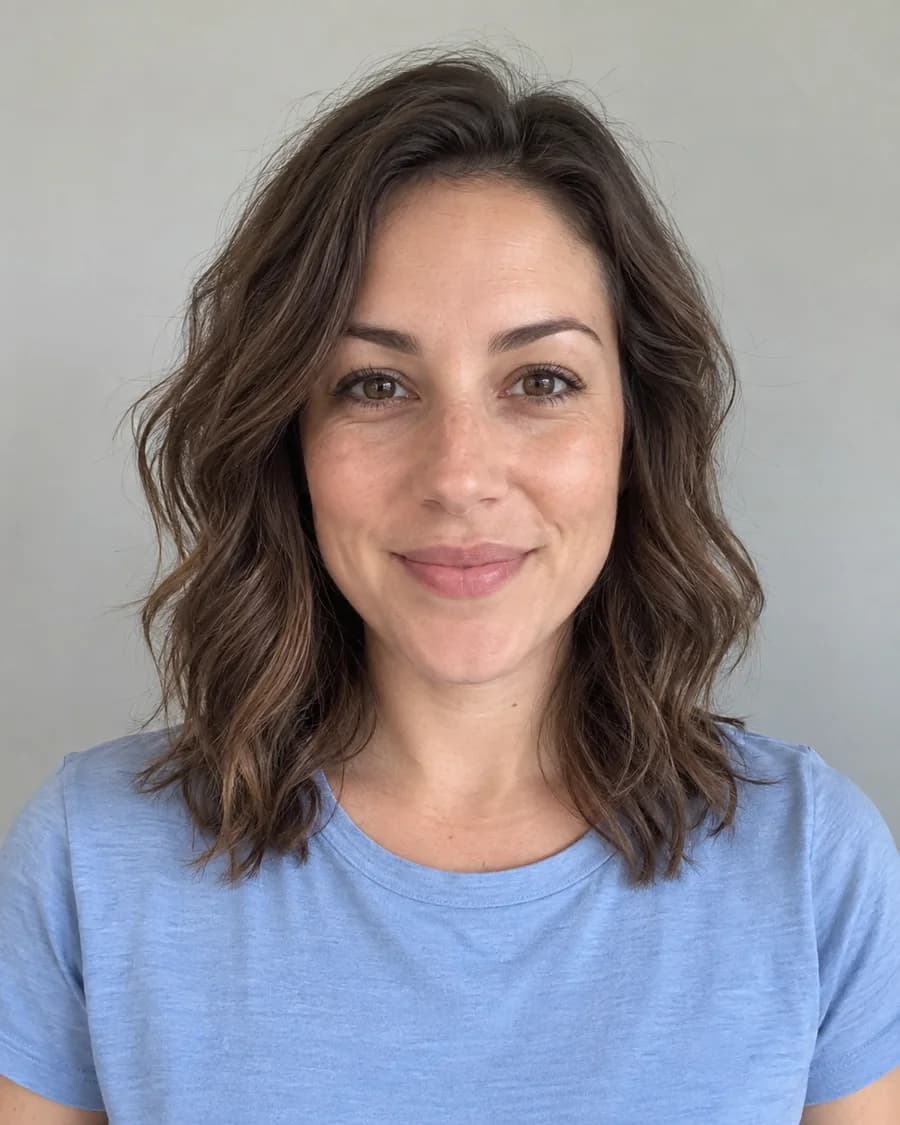
Quick answer
Use two separate, sharp photos with one subject in each. Keep the face or pet's features visible, remove screenshot overlays and choose framing that includes the clothes or body details you want. Make Hotel Lobby AI accepts still JPG, PNG and WebP images up to 8 MB each.
Give each performer their own reference image
Photo 1 is the intended left performer and Photo 2 is the intended right performer. A group image makes that assignment ambiguous because the generator has to decide which face or body is the reference. Start with separate photographs, or crop each subject into a separate file.
Leave enough space around the subject to preserve the head and features. A crop that cuts off ears, hair or the chin loses information that can matter during motion. If a group shot is your only source, check the finished crop at its actual size; a tiny face enlarged to fill the screen is still a tiny face in the original image.
Choose portrait or full body based on what matters
Choose a portrait when facial likeness is the main goal. The eyes, nose and mouth should be clearly visible, with even lighting and a natural expression. Extreme side views provide less information about the other side of the face, and heavy beauty filters can remove useful details.
Use a full-body image when clothing, proportions and shoes are central to your idea. Keep the entire subject in the frame, including the feet. A portrait cannot tell the model what shoes somebody is wearing, so details below the crop may be invented.
Neither framing guarantees a perfect identity match. Pick the image that contains the details you would be most disappointed to lose, then review those details throughout the generated clip.
Remove distractions before you upload
Crop away app controls, captions, stickers and decorative borders in screenshots. Text across a face is especially unhelpful because it hides the reference features. A plain background is useful, but you do not need to erase a normal background or make a transparent cutout.
Check the photo for motion blur, very dark shadows and bright light that washes out facial detail. Adding sharpness cannot recover a face that was never clear in the original file. When possible, replace a weak photo with a better one rather than repeatedly exporting the same damaged image.
- One subject is easy to identify.
- Eyes and facial features or pet markings are visible.
- The crop includes the body details you want preserved.
- No captions, stickers or other faces cover the performer.
- The source is sharp before any enlargement.
Check the actual file requirements
Upload still JPG, PNG or WebP files, with a maximum of 8 MB per source photo. Animated images and other formats are not accepted. If your phone gives you a HEIC file, export it as a supported still format before uploading.
The server checks the received image content and dimensions, rather than trusting its extension. Images must be between 300 and 6000 pixels on each side, with a width-to-height ratio between 0.4 and 2.5. Start with a normally framed portrait or landscape image instead of a very tall strip or panoramic crop.
The browser resizes and compresses large photos for upload. That makes a large source easier to send, but it does not fix blur, reveal a hidden face or add missing clothing detail. The output format you choose controls the video's shape; the source photos do not both need to be 9:16.
For pets and similar-looking subjects, preserve distinct cues
For a cat or dog, prioritize the eyes, ears, muzzle and recognizable coat pattern. Keep the animal large enough in the frame that its features are visible without zooming. A dark silhouette or a curled-up sleeping pose gives the model less information to work with.
For two people or pets that look alike, distinct clothing or visible markings can help separate the references. Check the photo order before generating. If the finished performers still blend or swap sides, change one weak reference and compare the next result, rather than assuming an identical retry will fix it.
Ready for your own duet?
Choose your two performers, check your credit balance and bring them into the booth.
Create a Hotel Lobby video ↗See credit packs